
- Home
- Tips & Guides
- How to manage your passwords without losing your mind
How to manage your passwords without losing your mind
Most password advice is a decade out of date. Here's what actually protects you, in the order that's worth doing it.
Almost everyone we visit has one of two password systems. Either the same password with a number on the end, used everywhere. Or a notebook by the computer that has become unreadable through twenty years of crossings-out.
Neither is a moral failing. Both are a completely reasonable response to being asked to remember ninety different passwords. The fix isn't willpower — it's stopping trying to remember them at all.
1. Why the old advice made things worse
For years the standard advice was: use a mix of upper case, lower case, numbers and symbols, and change it every 90 days. That advice has been formally withdrawn. The US standards body that originally published it now recommends the opposite — no forced expiry, no mandatory character rules — because of what people actually did in response:
- Forced changes produced
Summer2024!, thenSummer2025!. Predictable to a computer, annoying to a human. - Complexity rules produced
P@ssw0rd. Every substitution people think of, an attacker thought of first. - Both made passwords harder to remember, which pushed people towards reusing one everywhere — the single most dangerous habit of the lot.
So if you've been feeling guilty about not changing your passwords every three months: don't. That was never the thing that mattered.
The thing that actually matters is reuse. When a company gets breached, the stolen email-and-password pairs get fed into every other major site automatically. That's called credential stuffing, and it's why one leak at a shopping site can cost you your email account. A unique password per site turns a breach into a minor annoyance instead of a bad month.
2. Get a password manager. That's the whole trick
A password manager is an app that stores every login, fills them in for you, and generates new ones you never have to see. You remember one password; it remembers the other ninety.
Reasonable choices, all fine:
- The one already on your device. Apple's Passwords app on iPhone and Mac, Google Password Manager on Android and Chrome, or Microsoft's in Edge. Free, already there, and a massive improvement on reuse. The catch is that they work best when your whole household is on one ecosystem.
- Bitwarden. Free tier that's genuinely usable, works on everything, open source. This is what we usually suggest for people who mix an iPhone with a Windows PC.
- 1Password. Paid, around a few dollars a month, and the family plan is the nicest way to share logins between partners without texting them.
The best one is the one you'll actually use, and any of them beats a notebook. Don't spend three weeks researching this — pick one and start.
One underrated bonus: a password manager won't fill in your details on a fake website, because the address doesn't match the one it saved. It notices the things a tired human at 9pm doesn't. If your manager suddenly refuses to autofill a site you use often, that's worth a second look at the address bar — see our guide on spotting a scam email.
3. The one password you still have to remember
Your master password unlocks everything else, so it needs to be strong and memorable. The trick is length, not squiggles: four or five random words strung together.
Something like copper-lantern-mango-drift is far harder to crack than
Xk7!q2, and you can actually remember it. The words need to be genuinely random though
— not a phrase from a song, not your street and your dog.
Write the master password down. This sounds like heresy, and for years it was. But the realistic threat to your home computer isn't a burglar reading a card in your filing cabinet — it's someone on the other side of the world with a list of leaked passwords. Write it on a card, put it somewhere you'd keep your passport, and tell one person you trust where it is. Just don't stick it to the monitor.
4. What a good password actually looks like
For every account other than the master one, you shouldn't be inventing passwords at all — let the manager generate them. Twenty random characters you'll never see is exactly right.
For the handful you do have to type yourself (a Wi-Fi password, a computer login), the modern rules are short:
- Long beats complicated. Aim for 15+ characters. A passphrase of unrelated words is fine.
- Unique beats clever. No variation of a password you use elsewhere.
- Don't change it on a schedule. Change it when there's a reason — a breach, or someone who shouldn't have it does.
- Nothing guessable from your life. Kids' names, birthdays, the dog, your street. All of that is on Facebook.
5. Two-factor: start with email, ignore the rest for now
Two-factor authentication (2FA) means a stolen password alone isn't enough — there's a second step, usually a code. It is the highest-value ten minutes in this entire article.
You don't need it on everything. Do these, in this order:
- Your email. Non-negotiable, and first. Every other account's "forgot password" link goes to your inbox, so whoever controls your email controls everything else.
- Your bank, and myGov.
- Your password manager.
- Anything with your card saved — Amazon, eBay, PayPal.
Given the choice of method: an authenticator app (or your password manager's built-in codes) is better than SMS, because text messages can be intercepted or redirected to a new SIM. But SMS is still enormously better than nothing, so if the app version feels like a step too far, turn on the text-message one and move on with your life.
Save the recovery codes. When you switch 2FA on, most sites offer a list of one-time backup codes. Print them or save them in your password manager. They are how you get back in when your phone is lost, stolen, or at the bottom of a pool — and people who skip this step are the ones who end up permanently locked out.
6. Passkeys: what they are, and whether to bother
You'll increasingly be offered a "passkey" instead of a password. A passkey replaces the password entirely with a key stored on your phone or computer, unlocked with your fingerprint, face or device PIN.
Two genuine advantages: there's no password to steal in a breach, and a passkey cannot be phished, because it simply won't work on a fake site. It's the first change in decades that makes things both safer and easier.
Worth using where it's offered. Two things to know before you switch:
- Passkeys live in your device's ecosystem, or in your password manager. If you use an iPhone and a Windows PC, storing them in a password manager rather than Apple's keychain saves a lot of grief.
- Most sites keep the password as a fallback for now, so this is an addition rather than a clean replacement. Don't delete anything yet.
7. What to do when a password leaks
Not if. Breaches happen to companies you can't control, and they're common enough that assuming you're in one is the realistic position.
Check which ones you're caught up in at haveibeenpwned.com — type in your email address and it lists the known breaches containing it. It's a long-established free service run by an Australian security researcher, and it doesn't ask for your password.
If your address comes up:
- Change the password on that site.
- Change it anywhere else you used the same one — this is the part that actually matters, and the part people skip.
- Turn on 2FA for that account while you're in there.
- If it was your email password, do that one first and check the account's forwarding rules and recovery address haven't been quietly changed.
Most password managers will also warn you when a saved password turns up in a known breach, or when you've reused one. Let it nag you — that's the feature working.
8. Sharing with family, and what happens if you're not around
Two things worth setting up once and then forgetting about:
Sharing. Household logins — the streaming services, the power company, the internet account — are better in a shared folder in a password manager than sent by text. Family plans on 1Password and Bitwarden both do this properly, so you can share the Netflix login without sharing your bank one.
Access if something happens to you. This is the part almost nobody sets up, and the part that causes real distress. If you're hospitalised or worse, your partner or your kids may need into your email and accounts, and there is often no legal or practical way in.
- Bitwarden and 1Password both have an emergency-access feature: a trusted person can request access, and gets it after a delay you set unless you decline.
- Apple has Legacy Contact; Google has Inactive Account Manager.
- The low-tech version works too: the master password on a card, in a sealed envelope, wherever your will is.
Ten minutes now, and nobody has to have a difficult conversation with a bank later.
If you only do three things: install a password manager, turn on two-factor for your email, and stop reusing one password everywhere. Everything else on this page is refinement.
If you'd rather not do this alone — setting up a manager, importing what's already saved in your browser, getting 2FA working on your phone without locking yourself out — it's a common job for us and usually a straightforward one. Often it can be done remotely, and often inside the first half hour.
More guides
How to spot a scam email before you click
The four things nearly every fake invoice and “your account is suspended” email has in common — and the 10-second check that catches most of them.
Read the guide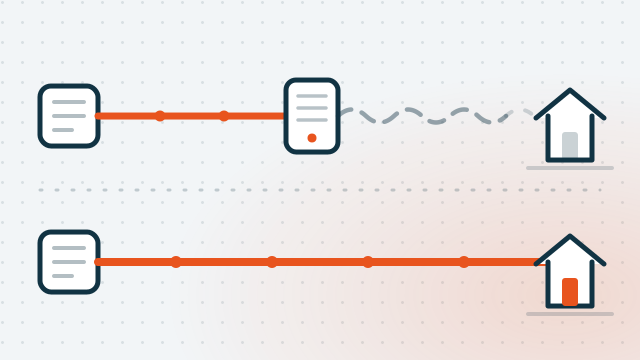
The free fibre upgrade most Brisbane homes haven't claimed
The September 2025 nbn speed jump only reached fibre and cable. How to find out what you're actually on, and how to get fibre run to your door for nothing.
Read the guideRelated questions
Is it really safe to keep all my passwords in one place?
What happens if I forget the master password?
Should I still change my passwords every few months?
Are the passwords saved in my browser good enough?
Can you set this up with me?

Rather not deal with it yourself?
Call and describe what's going on — we'll tell you honestly whether it needs a visit or can be sorted remotely today.